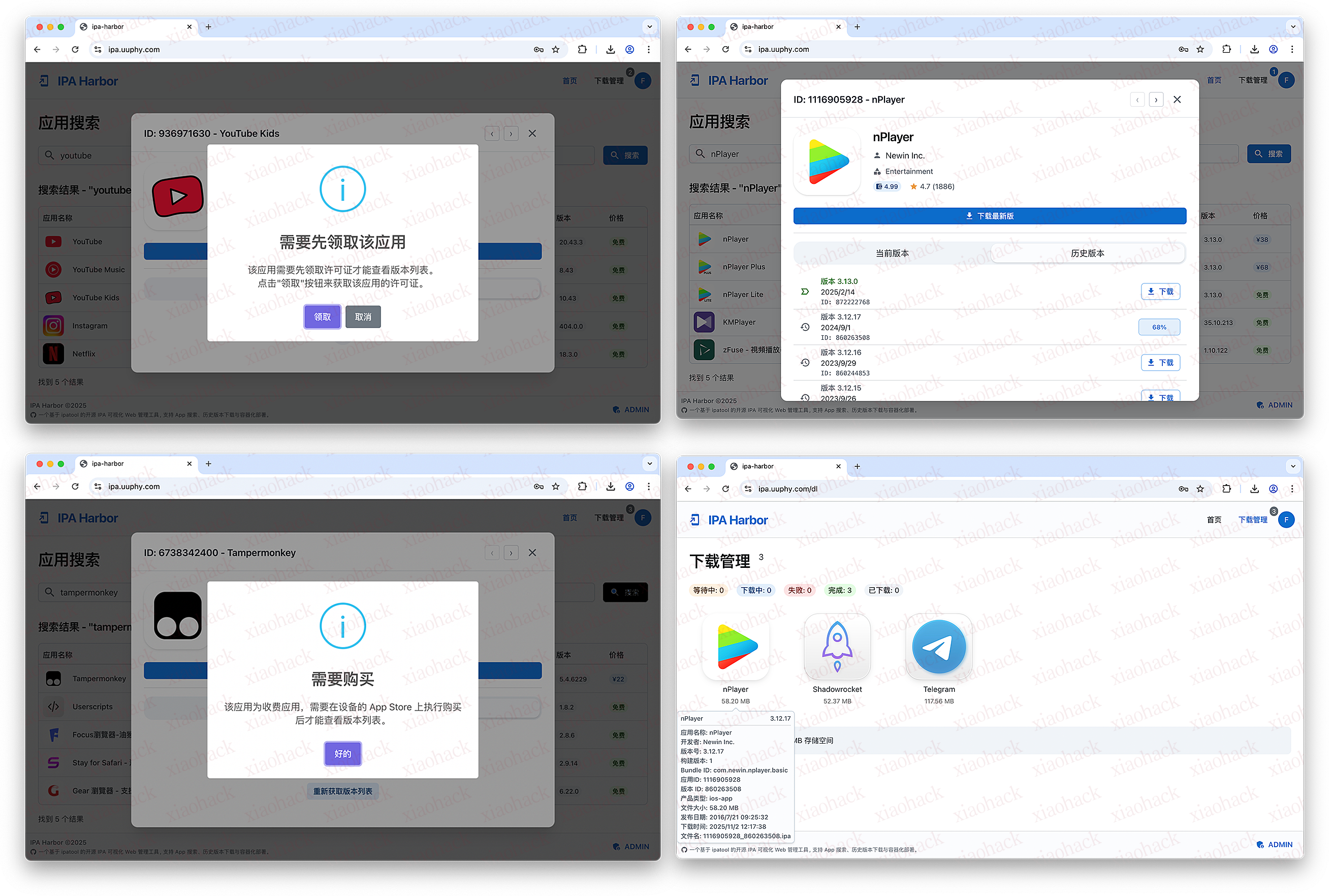
基本上可以激活任意版本的finalshell 高级版、专业版
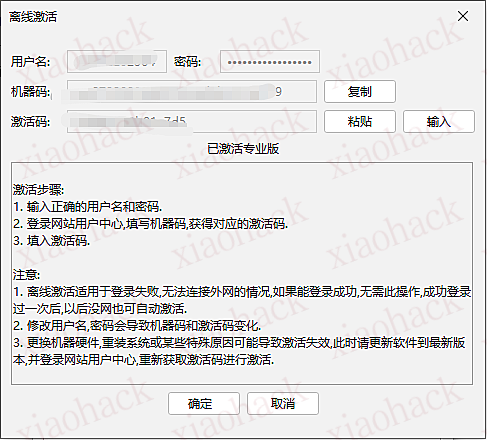
开源项目仅供学习使用,请大家支持正版。
源代码如下
<!DOCTYPE html>
<html lang="en">
<head>
<meta charset="UTF-8">
<meta name="viewport" content="width=device-width, initial-scale=1.0">
<meta http-equiv="content-type" content="text/html; charset=utf-8" />
<meta name="description" content="FinalShell 离线激活码生成器 安全便捷地生成FinalShell各个版本的离线激活码,无需联网验证。本工具仅用于学习和测试目的,请支持正版软件" />
<title>FinalShell 离线激活码生成器</title>
<style>
* {
margin: 0;
padding: 0;
box-sizing: border-box;
}
body {
color: #00ffff;
font-family: 'Courier New', monospace;
background: linear-gradient(135deg, #0c0c0c 0%, #1a1a2e 25%, #16213e 50%, #0f3460 75%, #533483 100%);
min-height: 100vh;
overflow-x: hidden;
position: relative;
}
/* 动态背景粒子 */
.particles {
position: fixed;
top: 0;
left: 0;
width: 100%;
height: 100%;
pointer-events: none;
z-index: 1;
}
.particle {
position: absolute;
width: 2px;
height: 2px;
background: #00ffff;
border-radius: 50%;
animation: float 8s infinite linear;
box-shadow: 0 0 10px #00ffff;
}
@keyframes float {
0% {
transform: translateY(100vh) rotate(0deg);
opacity: 0;
}
10% {
opacity: 1;
}
90% {
opacity: 1;
}
100% {
transform: translateY(-100vh) rotate(360deg);
opacity: 0;
}
}
/* 网格背景 */
.grid-bg {
position: absolute;
top: 0;
left: 0;
width: 100%;
height: 100%;
/*background-image: linear-gradient(rgba(0, 255, 255, 0.1) 1px, transparent 1px),*/
/*linear-gradient(90deg, rgba(0, 255, 255, 0.1) 1px, transparent 1px);*/
background: repeating-linear-gradient(
0deg,
rgba(0, 255, 255, 0.05) 0px,
rgba(0, 255, 255, 0.05) 1px,
transparent 1px,
transparent 20px
),
repeating-linear-gradient(
90deg,
rgba(0, 255, 255, 0.05) 0px,
rgba(0, 255, 255, 0.05) 1px,
transparent 1px,
transparent 20px
);
animation: grid-move 2s linear infinite;
background-size: 100px 100px;
pointer-events: none;
z-index: 0;
}
@keyframes grid-move {
0% {
background-position: 0 0,
0 0;
}
100% {
background-position: 40px 40px,
40px 40px;
}
}
/* 主体框架 */
.ai-hud-component {
background-color: transparent;
display: flex;
justify-content: center;
align-items: center;
height: 100vh;
min-width: 100%;
position: relative;
overflow: hidden;
}
/* 框架 */
.ai-hud-frame {
border-radius: 10px;
display: flex;
flex-direction: column;
align-items: stretch;
position: relative;
padding: 1.5rem;
width: 30em;
background: rgba(0, 255, 255, 0.05);
border: 1px solid rgba(0, 255, 255, 0.2);
box-shadow: 0 0 30px rgba(0, 255, 255, 0.1);
z-index: 2;
animation: frame-pulse 5s infinite ease-in-out;
}
/* 输入框容器 */
.ai-hud-input-wrapper {
margin-bottom: 10px;
position: relative;
display: flex;
align-items: center;
z-index: 3;
}
/* 输入框 */
.ai-hud-input {
border-radius: 5px;
flex: 1;
background: transparent;
border: 1px solid rgba(0, 255, 255, 0.2);
outline: none;
color: #00ffff;
font-family: "Orbitron", sans-serif;
font-size: 1rem;
letter-spacing: 0.1em;
padding: 0.5rem 0.75rem;
caret-color: #00ffff;
transition: border 0.3s,
box-shadow 0.3s;
}
/* 输入框: 聚焦 */
.ai-hud-input:hover {
border: 1px solid rgba(0, 255, 255, 0.5);
box-shadow: 0 0 12px rgba(0, 255, 255, 0.3);
}
/* 输入框: 占位符 */
.ai-hud-input::placeholder {
color: rgba(0, 255, 255, 0.4);
}
/* 优化后的 autofill 样式 */
input:-webkit-autofill,
input:-webkit-autofill:hover,
input:-webkit-autofill:focus,
input:-webkit-autofill:active {
-webkit-background-clip: text;
-webkit-text-fill-color: #00ffff;
background-color: transparent !important;
}
input:-internal-autofill-selected {
background-color: transparent;
color: #00ffff;
}
/* 清除按钮 */
.ai-hud-btn-clear {
position: absolute;
right: 110px; /* 调整位置以避开计算按钮 */
background: transparent;
border: none;
color: rgba(0, 255, 255, 0.4);
font-size: 1.2rem;
cursor: pointer;
width: 20px;
height: 20px;
display: none; /* 默认隐藏 */
z-index: 4;
}
.ai-hud-btn-clear:hover {
color: #00ffff;
}
/* 按钮 */
.ai-hud-btn {
border-radius: 5px;
color: rgba(0, 255, 255, 0.4);
background: rgba(0, 255, 255, 0.05);
border: 1px solid rgba(0, 255, 255, 0.4);
padding: 0.6rem 1rem;
cursor: pointer;
margin-left: 0.75rem;
transition: all 0.4s ease;
box-shadow: 0 0 8px rgba(0, 255, 255, 0.3);
}
/* 按钮: 聚焦 */
.ai-hud-btn:hover {
box-shadow: 0 0 10px rgba(0, 255, 255, 0.5), 0 0 20px rgba(0, 255, 255, 0.3);
background: rgba(0, 255, 255, 0.08);
}
/* 按钮: 点击 */
.ai-hud-btn:active {
box-shadow: 0 0 10px rgba(0, 255, 255, 0.8), 0 0 20px rgba(0, 255, 255, 0.5);
background: rgba(0, 255, 255, 0.08);
}
/* 复制按钮 */
.ai-hud-btn-copy {
color: rgb(93 178 26);
background: transparent;
border: none;
padding: 0 5px;
cursor: pointer;
}
/* 标题 */
.ai-hud-title {
text-align: center;
font-size: 1.5rem;
padding-bottom: 20px;
}
/* 内容 */
.ai-hud-content {
border: 1px solid rgba(0, 255, 255, 0.4);
margin-top: 10px;
padding: 10px 20px;
border-radius: 5px;
}
/* 加载动画 */
.loading {
text-align: center;
padding: 20px;
}
.spinner {
border: 2px solid rgba(0, 255, 255, 0.3);
border-top: 2px solid #00ffff;
border-radius: 50%;
width: 20px;
height: 20px;
animation: spin 1s linear infinite;
margin: 0 auto;
}
@keyframes spin {
0% {
transform: rotate(0deg);
}
100% {
transform: rotate(360deg);
}
}
</style>
</head>
<body>
<!-- 网格背景 -->
<div class="grid-bg"></div>
<!-- 粒子背景 -->
<div class="particles" id="particles"></div>
<div class="ai-hud-component">
<div class="ai-hud-frame">
<div class="ai-hud-title">
FinalShell 离线激活码生成器
<div style="font-size: 12px;margin-top: 10px">
注意:本工具仅用于学习和测试目的,请支持正版软件
</div>
</div>
<div class="ai-hud-input-wrapper">
<input type="text" id="machineIdInput" class="ai-hud-input" placeholder="请输入机器码..."/>
<button class="ai-hud-btn-clear" id="clearBtn" onclick="clearInput()" title="清空">×</button>
<button class="ai-hud-btn" id="generateBtn" onclick="generateActivationCode()">开始计算</button>
</div>
<div id="result">
</div>
</div>
<div style="position: absolute;bottom: 10px">
© 2025 FinalShell激活码生成器 | 安全可靠 | 离线使用
</div>
</div>
<script>
// 清空输入框函数
function clearInput() {
const input = document.getElementById('machineIdInput');
input.value = '';
// 隐藏清除按钮
document.getElementById('clearBtn').style.display = 'none';
// 聚焦到输入框
input.focus();
}
// 监听输入框变化,控制清除按钮显示/隐藏
document.getElementById('machineIdInput').addEventListener('input', function () {
const clearBtn = document.getElementById('clearBtn');
if (this.value.trim() !== '') {
clearBtn.style.display = 'block';
} else {
clearBtn.style.display = 'none';
}
});
// 生成激活码主函数
function generateActivationCode() {
const machineId = document.getElementById('machineIdInput').value.trim();
// 输入验证
if (!machineId) {
showNotification('请输入机器码');
return;
}
// 显示加载状态
showLoading();
// 发送请求到API
fetch(`https://t.543.ink/v1/api/activat?machineId=${encodeURIComponent(machineId)}`)
.then(response => {
// 检查响应状态
if (!response.ok) {
throw new Error(`HTTP error! status: ${response.status}`);
}
return response.json();
})
.then(data => {
// 检查API返回是否成功
if (data && data.code === 200) {
// 处理返回的数据并在页面上显示结果
displayResult(data.data);
} else {
// 处理API错误
throw new Error(data.message || 'API返回错误');
}
})
.catch(error => {
console.error('Error:', error);
showError('请求失败: ' + error.message);
});
}
// 展示结果函数
function displayResult(data) {
const resultDiv = document.getElementById('result');
// 清空之前的结果
resultDiv.innerHTML = '';
// 检查数据是否存在且为数组
if (!data || !Array.isArray(data) || data.length === 0) {
resultDiv.innerHTML = '<div class="ai-hud-content">未找到相关数据</div>';
return;
}
// 遍历数据并生成结果HTML
data.forEach(item => {
const version = item.version || 'N/A';
const advanced = item.advanced || 'N/A';
const professional = item.professional || 'N/A';
const contentDiv = document.createElement('div');
contentDiv.className = 'ai-hud-content';
contentDiv.innerHTML = `
<div>版本号: ${version}</div>
<div>
<span>高级版: ${advanced}</span>
<button class="ai-hud-btn-copy" onclick="copyToClipboard('${advanced}')">复制</button>
</div>
<div>
<span>专业版: ${professional}</span>
<button class="ai-hud-btn-copy" onclick="copyToClipboard('${professional}')">复制</button>
</div>
`;
resultDiv.appendChild(contentDiv);
});
}
// 复制到剪贴板功能
function copyToClipboard(text) {
navigator.clipboard.writeText(text).then(() => {
// 使用更友好的提示方式
showNotification('已复制到剪贴板');
}).catch(err => {
console.error('复制失败:', err);
showNotification('复制失败,请手动复制');
});
}
// 显示加载状态
function showLoading() {
const resultDiv = document.getElementById('result');
resultDiv.innerHTML = `
<div class="loading">
<div class="spinner"></div>
<p>正在计算中...</p>
</div>
`;
}
// 显示错误信息
function showError(message) {
const resultDiv = document.getElementById('result');
resultDiv.innerHTML = `<div class="ai-hud-content" style="color: #ff4d4d;">错误: ${message}</div>`;
// 重新启用按钮
const btn = document.getElementById('generateBtn');
btn.disabled = false;
btn.textContent = '开始计算';
}
// 显示通知消息
function showNotification(message) {
// 检查是否已存在通知容器,如果没有则创建
let notificationContainer = document.getElementById('notification-container');
if (!notificationContainer) {
notificationContainer = document.createElement('div');
notificationContainer.id = 'notification-container';
notificationContainer.style.position = 'fixed';
notificationContainer.style.top = '5%';
notificationContainer.style.left = '50%';
notificationContainer.style.transform = 'translateX(-50%)';
notificationContainer.style.zIndex = '1000';
notificationContainer.style.display = 'flex';
notificationContainer.style.flexDirection = 'column';
notificationContainer.style.alignItems = 'center';
notificationContainer.style.gap = '10px';
document.body.appendChild(notificationContainer);
}
// 创建通知元素(保留原始样式)
const notification = document.createElement('div');
notification.textContent = message;
notification.style.border = '1px solid rgba(0, 255, 255, 0.4)';
notification.style.color = '#00ffff';
notification.style.padding = '5px 30px';
notification.style.borderRadius = '5px';
notification.style.fontFamily = 'sans-serif';
notification.style.fontSize = '16px';
notification.style.textAlign = 'center';
notification.style.minWidth = '200px';
notification.style.backgroundColor = 'rgba(0, 0, 0, 0.2)';
notification.style.opacity = '0';
notification.style.transition = 'opacity 0.3s ease-in-out';
// 添加到容器中
notificationContainer.appendChild(notification);
// 触发动画显示
setTimeout(() => {
notification.style.opacity = '1';
}, 10);
// 3秒后自动移除
setTimeout(() => {
notification.style.opacity = '0';
setTimeout(() => {
if (notification.parentNode) {
notification.parentNode.removeChild(notification);
}
// 如果容器为空,则移除容器
if (notificationContainer.children.length === 0) {
if (notificationContainer.parentNode) {
notificationContainer.parentNode.removeChild(notificationContainer);
}
}
}, 300);
}, 3000);
}
// 创建粒子效果
function createParticles() {
const particlesContainer = document.getElementById('particles');
const particleCount = 50;
for (let i = 0; i < particleCount; i++) {
const particle = document.createElement('div');
particle.className = 'particle';
particle.style.left = Math.random() * 100 + '%';
particle.style.animationDelay = Math.random() * 8 + 's';
particle.style.animationDuration = (Math.random() * 3 + 5) + 's';
// 随机颜色
const colors = ['#00ffff', '#ff00ff', '#ffff00', '#00ff00'];
const randomColor = colors[Math.floor(Math.random() * colors.length)];
particle.style.background = randomColor;
particle.style.boxShadow = `0 0 10px ${randomColor}`;
particlesContainer.appendChild(particle);
}
}
// 初始化粒子
createParticles();
// 定期添加新粒子
setInterval(() => {
if (document.querySelectorAll('.particle').length < 100) {
const particle = document.createElement('div');
particle.className = 'particle';
particle.style.left = Math.random() * 100 + '%';
particle.style.animationDuration = (Math.random() * 3 + 5) + 's';
const colors = ['#00ffff', '#ff00ff', '#ffff00', '#00ff00'];
const randomColor = colors[Math.floor(Math.random() * colors.length)];
particle.style.background = randomColor;
particle.style.boxShadow = `0 0 10px ${randomColor}`;
document.getElementById('particles').appendChild(particle);
// 粒子动画结束后移除
setTimeout(() => {
if (particle.parentNode) {
particle.parentNode.removeChild(particle);
}
}, 8000);
}
}, 200);
</script>
<script>
!function(p){"use strict";!function(t){var s=window,e=document,i=p,c="".concat("https:"===e.location.protocol?"https://":"http://","sdk.51.la/js-sdk-pro.min.js"),n=e.createElement("script"),r=e.getElementsByTagName("script")[0];n.type="text/javascript",n.setAttribute("charset","UTF-8"),n.async=!0,n.src=c,n.id="LA_COLLECT",i.d=n;var o=function(){s.LA.ids.push(i)};s.LA?s.LA.ids&&o():(s.LA=p,s.LA.ids=[],o()),r.parentNode.insertBefore(n,r)}()}({id:"3OGKOla4LiTErC1d",ck:"3OGKOla4LiTErC1d"});
</script>
<script id="LA-DATA-WIDGET" crossorigin="anonymous" charset="UTF-8" src="https://v6-widget.51.la/v6/3OGKOla4LiTErC1d/quote.js?theme=#00FFFF,#333333,#00FFFF,#00FFFF,#FFFFFF,#00FFFF,12&f=12&display=0,0,0,1,0,1,1,1"></script>
</body>
</html>
在线地址:https://finalshell.543.ink/