使用 C# 将 DataTable 导出为 Word 文档
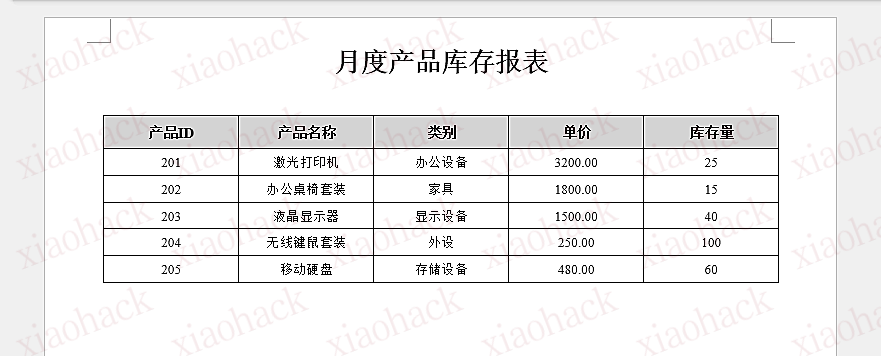
在日常企业办公和数据分析中,表格数据的可视化和文档化非常常见。无论是产品销售报表、库存清单,还是项目进度表,通常都会希望将数据直接导出为 Word 文档,以便打印、归档或分发。手动复制粘贴不仅效率低,而且容易出错。借助 C#,我们可以轻松将 本文将带你完整了解从创建 Word 文档、构建表格、填充数据到保存文档的流程,并重点讲解核心技术细节和关键 API 使用方式。 文中使用的方法需要用到 Free Spire.Doc for .NET,可通过 NuGet 安装: 导出 下面给出完整示例代码(已优化结构和示例数据): 以下是上面代码生成的Word文档: 在这个示例中,最关键的技术点如下: 本文展示了如何使用 C# 将 更多 Word 文档处理技巧请前往 Spire.Doc 文档中心查看。DataTable 数据生成格式规范、可自定义样式的 Word 表格,实现自动化办公。dotnet add package FreeSpire.Doc。核心流程与实现
DataTable 到 Word 文档的流程主要包括以下几个步骤:DataTable 数据using System;
using System.Data;
using Spire.Doc;
using Spire.Doc.Documents;
using Spire.Doc.Fields;
using System.Drawing;
public class DataTableToWordExporter
{
public static void ExportDataTableToWord(DataTable dataTable, string filePath)
{
// 1. 创建 Word 文档
Document document = new Document();
Section section = document.AddSection();
// 2. 添加文档标题
Paragraph titlePara = section.AddParagraph();
titlePara.Format.HorizontalAlignment = HorizontalAlignment.Center;
TextRange titleText = titlePara.AppendText("月度产品库存报表");
titleText.CharacterFormat.FontSize = 20;
titleText.CharacterFormat.Bold = true;
// 添加空行
section.AddParagraph().AppendText(Environment.NewLine);
// 3. 校验 DataTable 数据
if (dataTable == null || dataTable.Rows.Count == 0)
{
section.AddParagraph().AppendText("当前没有可用数据。");
document.SaveToFile(filePath, FileFormat.Docx);
Console.WriteLine("数据为空,文档已保存。");
return;
}
// 4. 创建 Word 表格
Table table = section.AddTable(true);
table.ResetCells(dataTable.Rows.Count + 1, dataTable.Columns.Count);
// 设置表格整体样式
table.TableFormat.Borders.LineWidth = 1;
table.TableFormat.Borders.BorderType = BorderStyle.Single;
table.TableFormat.Borders.Color = Color.Black;
table.PreferredWidth = new PreferredWidth(WidthType.Percentage, 100);
table.TableFormat.HorizontalAlignment = RowAlignment.Center;
// 5. 填充表头
TableRow headerRow = table.Rows[0];
headerRow.IsHeader = true;
headerRow.RowFormat.BackColor = Color.LightGray;
headerRow.RowFormat.Height = 25;
headerRow.RowFormat.HeightType = TableRowHeightType.Exactly;
for (int i = 0; i < dataTable.Columns.Count; i++)
{
headerRow.Cells[i].CellFormat.VerticalAlignment = VerticalAlignment.Middle;
Paragraph p = headerRow.Cells[i].AddParagraph();
p.Format.HorizontalAlignment = HorizontalAlignment.Center;
TextRange tr = p.AppendText(dataTable.Columns[i].ColumnName);
tr.CharacterFormat.Bold = true;
tr.CharacterFormat.FontSize = 11;
}
// 6. 填充数据行
for (int r = 0; r < dataTable.Rows.Count; r++)
{
TableRow dataRow = table.Rows[r + 1];
dataRow.RowFormat.Height = 20;
dataRow.RowFormat.HeightType = TableRowHeightType.Exactly;
for (int c = 0; c < dataTable.Columns.Count; c++)
{
dataRow.Cells[c].CellFormat.VerticalAlignment = VerticalAlignment.Middle;
Paragraph p = dataRow.Cells[c].AddParagraph();
p.Format.HorizontalAlignment = HorizontalAlignment.Center;
TextRange tr = p.AppendText(dataTable.Rows[r][c].ToString());
tr.CharacterFormat.FontSize = 10;
}
}
// 7. 保存文档
try
{
document.SaveToFile(filePath, FileFormat.Docx);
Console.WriteLine($"DataTable 已成功导出到 Word 文档:{filePath}");
}
catch (Exception ex)
{
Console.WriteLine($"导出 Word 文档时发生错误:{ex.Message}");
}
}
public static void Main()
{
// 模拟 DataTable 数据
DataTable dt = new DataTable("Products");
dt.Columns.Add("产品ID", typeof(int));
dt.Columns.Add("产品名称", typeof(string));
dt.Columns.Add("类别", typeof(string));
dt.Columns.Add("单价", typeof(decimal));
dt.Columns.Add("库存量", typeof(int));
dt.Rows.Add(201, "激光打印机", "办公设备", 3200.00m, 25);
dt.Rows.Add(202, "办公桌椅套装", "家具", 1800.00m, 15);
dt.Rows.Add(203, "液晶显示器", "显示设备", 1500.00m, 40);
dt.Rows.Add(204, "无线键鼠套装", "外设", 250.00m, 100);
dt.Rows.Add(205, "移动硬盘", "存储设备", 480.00m, 60);
string outputPath = "ProductInventoryReport.docx";
ExportDataTableToWord(dt, outputPath);
// 测试空数据情况
DataTable emptyDt = new DataTable("Empty");
emptyDt.Columns.Add("ID");
ExportDataTableToWord(emptyDt, "EmptyReport.docx");
}
}
核心技术解析
Document document = new Document();Section section = document.AddSection();
使用 Document 对象创建新文档,Section 提供页布局和内容容器。Table table = section.AddTable(true);table.ResetCells(rows, columns);
表格的行列数量与 DataTable 对应,单元格填充通过 AddParagraph() + AppendText() 实现。
通过 RowFormat.BackColor、RowFormat.Height 和 TextRange.CharacterFormat 设置字体加粗、字号和单元格背景色,使表格专业美观。
利用循环遍历 DataTable.Rows 和 DataTable.Columns,将数据逐行写入 Word 单元格,并使用 HorizontalAlignment.Center 和 VerticalAlignment.Middle 保持表格整齐。
在 DataTable 无数据时提供提示并仍保存文档,保证程序稳健性。核心 API 总结
类 / 属性 / 方法 说明 DocumentWord 文档对象,可添加 Section、表格、段落等 Section文档章节容器,承载段落和表格 Section.AddParagraph()添加段落 Section.AddTable(bool)添加表格,参数表示是否自动适应页面宽度 Table.ResetCells(rows, cols)重置表格行列数量 TableRow表格行对象,可设置高度、背景色 TableRow.Cells单元格集合 Paragraph段落对象,可添加文本 Paragraph.AppendText(string)向段落添加文本 TextRange.CharacterFormat设置字体、字号、加粗等文本样式 CellFormat单元格格式,包括垂直对齐等 HorizontalAlignment / VerticalAlignment文本水平/垂直对齐方式 Document.SaveToFile()保存文档,支持 DOCX、PDF 等格式 总结
DataTable 数据导出为 Word 文档,实现表格化展示与自动排版。通过 Spire.Doc,你不仅可以轻松创建文档和章节,还能自动生成格式规范的表格,同时处理空数据情况,保证程序运行的稳健性。在表头样式和数据对齐的控制下,导出的文档既美观又易于阅读。掌握这些技术后,你可以将数据库或 Excel 中的业务数据快速转换为 Word 报表,大幅减少手动操作的时间,同时在企业报表自动化、数据归档和文档生成等场景中提升工作效率和专业性。